
Your Money Deserves a Better System — Start Here
The best monthly budget calculator Google Sheets templates are completely free, work on any device, and can be set up in minutes. Here are the top options covered in this guide:
| Template Type | Best For |
|---|---|
| Google’s built-in Monthly Budget | Simple, no-frills tracking |
| Monthly Budget Planner (with YTD) | Year-round tracking with color coding |
| 50/30/20 Budget Template | Splitting needs, wants, and savings |
| Zero-Based Budget Template | Accounting for every single dollar |
| Household Budget Template | Multiple incomes and shared expenses |
To use any of them: open the template, click File > Make a copy, rename it, and start entering your numbers.
Knowing where your money goes is one of the most powerful things you can do in your 20s. But most budgeting advice feels either overwhelming or boring — and most people quit before they even start.
That’s where a spreadsheet budget changes everything.
One Reddit user named Celesmeh created a Google Sheets budget template specifically for people who felt intimidated by budgeting. It earned over 10,000 upvotes from people who finally felt like they had a tool that made sense.
Google Sheets works so well for budgeting because it’s already free, it lives in the cloud (so you can check it from your phone, laptop, or library computer), and it does the math for you automatically.
You don’t need to be a spreadsheet expert. You just need the right starting point.
This guide rounds up the best free monthly budget calculator templates for Google Sheets — and shows you exactly how to use them.
Why Use a Monthly Budget Calculator Google Sheets Template?
If you’ve ever tried to manage your money using a crumpled receipt or a mental note, you know how quickly things can fall apart. Transitioning to a monthly budget calculator Google Sheets setup is like upgrading from a bicycle to a jet engine.
The primary draw is cloud access. Because your budget lives on Google’s servers, you can log a coffee purchase on your phone while standing in line and see it reflected on your laptop when you get home. It offers real-time updates, meaning you never have to wonder “how much do I have left?” midway through the month.
For those of us sharing expenses—whether with a roommate or a partner—the collaboration features are a lifesaver. You can both edit the same sheet at the same time, ending the “who paid for the utilities?” debate forever. Furthermore, the level of customization is unmatched. Unlike rigid apps that force you into their categories, a Google Sheet lets you build a system that reflects your actual life. You can explore Simple Tools for Budget Management to see how spreadsheets fit into a broader financial toolkit.
The “magic” happens with automatic calculations. Once you set up your formulas, the sheet does the heavy lifting. You enter an expense, and the sheet instantly tells you your remaining balance. This helps you avoid Beginner Budgeting Mistakes to Avoid, such as math errors or forgetting to account for “hidden” costs. Plus, the data visualization—think colorful pie charts and bar graphs—turns boring rows of numbers into a clear story about your spending habits.
Benefits for Young Adults and Students
For young adults, income isn’t always a steady paycheck. You might have a side hustle, a part-time campus job, or seasonal freelance work. A monthly budget calculator Google Sheets is perfect for managing variable income because you can adjust your “expected” totals every single month.
Students, in particular, face unique challenges like tuition payments, textbook costs, and meal plans. Using Simple Budgeting Tips for Students alongside a dedicated sheet allows for better academic year planning. You can see exactly how much of your summer savings needs to last through finals week.
These tools are about Personal Finance Budgeting Tips for Young Adults that lead to true financial independence. When you control the spreadsheet, you control your future.
Top Free Monthly Budget Calculator Google Sheets Templates
Finding the right template is half the battle. You don’t want something so complex it requires a degree in accounting, but you need enough detail to actually be useful.
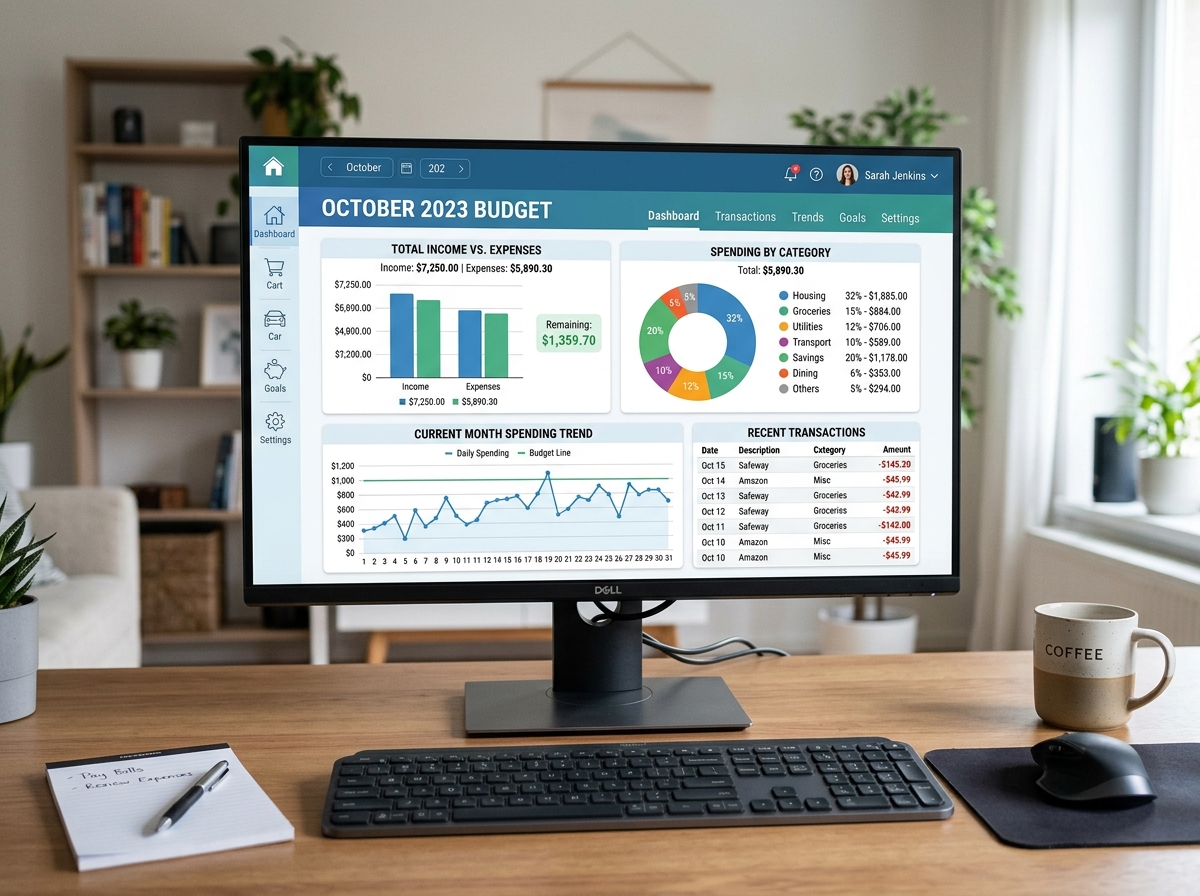
Here are three heavy hitters to get you started:
- Monthly budget – Google Template – Google Drive: This is the “official” Google version. It’s clean, professional, and focuses on two main tabs: Summary and Transactions. It’s the gold standard for anyone who wants a “plug-and-play” experience without any setup hassle.
- Monthly Budget Planner – Google Sheets: This template is a fan favorite because of its color-coded variance indicators. If you spend less than planned, the numbers turn green; spend more, and they turn red. It also includes a “YTD Summary” (Year-to-Date) tab that automatically aggregates your data as the months go by.
- Easy Budget Planner for Beginners: If you are brand new to “income vs. expenses,” this is your best bet. It strips away the jargon and focuses on the essentials, making it much harder to feel overwhelmed.
Best Monthly Budget Calculator Google Sheets for the 50/30/20 Rule
The 50/30/20 rule is a classic financial philosophy that divides your after-tax income into three buckets:
- 50% for Needs: Rent, groceries, utilities, and insurance.
- 30% for Wants: Dining out, concerts, and that new pair of sneakers.
- 20% for Savings and Debt Repayment: Building an emergency fund or paying down student loans.
Using a monthly budget calculator Google Sheets specifically designed for this rule helps you visualize these percentages instantly. It’s a great way to see if your “Wants” are secretly eating into your “Savings.” If you’re unsure where to put that 20%, check out Budgeting for Savings: Where to Begin to help prioritize your goals.
Best Monthly Budget Calculator Google Sheets for Zero-Based Budgeting
Zero-based budgeting is the ultimate “boss mode” for your money. The goal is to ensure that every dollar of your income is assigned a job, so that Income minus Expenses equals exactly zero at the end of the month.
This method requires financial discipline, but it’s incredibly effective for Zero-Based Budgeting for Beginners. A zero-based monthly budget calculator Google Sheets will have detailed expense categories and a “leftover” cell that you want to get to $0 by funneling extra cash into debt repayment or investments. It prevents money from simply “disappearing” into mindless spending.
How to Set Up and Customize Your Monthly Budget
Once you’ve picked a template, the real fun begins. Setting it up correctly ensures that your data is accurate and your experience is stress-free.
- Access the Template: Click the link to your chosen template. It will likely be in “View Only” mode.
- Make it Yours: Go to File > Make a copy. This saves a private version to your own Google Drive.
- Rename the File: Instead of “Copy of Budget,” try “Monthly Budget – [Year].”
- Organize by Month: Many people like to create a new tab for each month. Right-click the bottom tab and select “Duplicate” to keep your formatting consistent for February, March, and beyond. This is especially helpful when Creating a Family Budget Plan where multiple people need to see historical data.
Essential Categories for Your Monthly Budget Calculator Google Sheets
A budget is only as good as its categories. If your categories are too broad (like just “Stuff”), you won’t know where to cut back. If they are too specific (like “Blueberry Muffins”), you’ll get bored of entering data.
We recommend splitting your monthly budget calculator Google Sheets into these core sections:
- Income: List all sources—salary, freelance gigs, tax refunds, or even birthday money.
- Fixed Expenses: These are the “must-pays” that stay the same, like rent, car payments, and subscriptions.
- Variable Costs: This is where the battle is won or lost. Focus on Tracking Daily Spending Effectively for groceries, gas, and entertainment.
- Debt Management: Credit cards and student loans belong here.
- Emergency Funds: Always budget for the unexpected. Budgeting for Unexpected Expenses ensures a car repair doesn’t ruin your whole month.
If you’re working from home, don’t forget to look at How to Track Expenses at Home for items like increased utility bills or home office supplies.
Customizing Formulas and Visuals
To make your monthly budget calculator Google Sheets truly “smart,” you can use a few simple tricks:
- The SUMIF Function: This is the “star” of automation. It allows you to have a “Transactions” tab where you log every purchase, and a “Summary” tab that automatically adds up everything in the “Groceries” category. For example,
=SUMIF(Transactions!B:B, "Groceries", Transactions!D:D)tells the sheet to find every row labeled “Groceries” and add up the costs. - Data Validation: Use this to create dropdown menus for your categories. This prevents typos (like writing “Grocries”) from breaking your formulas.
- Conditional Formatting: Set your “Difference” column to turn red if you go over budget. This provides instant visual feedback. This is a great tip to include in your Weekly Budgeting Tips for Beginners routine.
- Visual Aids: Insert pie charts to see what percentage of your money goes to rent vs. fun, or bar graphs to track your savings growth over time.
Advanced Features: Automation and AI in Google Sheets
We are living in the future, and your spreadsheet should reflect that. Google Sheets now includes powerful AI-driven features that can save you hours of manual entry.
- Explore Tool: Click the “Explore” button in the bottom right corner. You can ask Google Sheets questions in plain English, like “What was my total spending on dining out in March?” and it will generate the answer and a chart instantly.
- Smart Fill: If you start typing “Trader Joe’s” and then “Groceries,” Google will eventually recognize the pattern detection and offer to fill in the rest of the categories for you.
- Smart Cleanup: When you import data from your bank (usually as a CSV file), it can be messy. Smart Cleanup helps you remove duplicate entries and fix formatting errors automatically.
Using these tools makes it easier to stick to Budget-Friendly Lifestyle Tips because the “boring” part of budgeting is handled by the software.
Frequently Asked Questions about Google Sheets Budgeting
How do I make a copy of a Google Sheets budget template?
It’s simple! Open the template link. In the top left corner, click the File menu and select Make a copy. A box will pop up asking you to name the file and choose a folder in your Google Drive. Once you hit “OK,” you have your own private version that you can edit. You don’t need special permissions from the owner of the original template.
Can I use Google Sheets for a low-income budget?
Absolutely. In fact, when money is tight, a monthly budget calculator Google Sheets is even more important. It helps with Budgeting on a Low Income by allowing you to prioritize needs and identify every possible area for expense reduction. Seeing exactly where every cent goes is the first step toward better resource management.
How do I track actual vs. projected spending?
Most good templates include three columns: Projected (or Budgeted), Actual, and Variance (or Difference).
- At the start of the month, fill in your “Projected” amounts.
- Throughout the month, log your “Actual” spending.
- The “Variance” column will automatically subtract the two. A negative number usually means you overspent, while a positive number means you have extra cash! Do a monthly review to adjust your projections for the next month based on these results.
Conclusion
At QuickFinHub, we believe that financial literacy shouldn’t be a luxury—it should be accessible to everyone. Starting a monthly budget calculator Google Sheets is one of the most effective steps you can take toward Creating a Sustainable Budget Plan.
Whether you choose a simple built-in template or build a custom AI-powered dashboard, the goal is the same: to move from passive tracking to active planning. Don’t worry about being perfect from day one. Budgeting is a skill that gets better with practice.
For more Budgeting Tips and advice tailored for young adults, visit QuickFinHub. Your future self will thank you for the work you’re doing today. Now, go grab a template and start telling your money where to go!
